

Automation API
The Automation API is available from the browser.webfuseSession.automation namespace, callable from any extension component (content script, popup, side panel, service worker, new-tab page).
- Perception methods (‘see’ 👁️) are grouped under
automation.see. - Actuation methods (‘act’ 👆️) are grouped under
automation.act. - Auxiliary tool methods (‘tool’ 🛠️) are grouped under
automation.tool. - Other methods and properties are available right from
automation.
Targeting
Section titled “Targeting”The Automation API can be utilized with both DOM- and vision-based agents. For this, targeting an element in the page is overloaded with different types:
type Target = HTMLElement | CSSSelector | Point | WebfuseID | WebfuseLocator | MetaTarget;
type CSSSelector = string;type Point = [number, number]; // [x, y];type WebfuseID = string; // Unique ID of an element; O(1) lookuptype WebfuseLocator = string; // Semantic short-code of an element; O(n) lookupenum MetaTarget {  POINTER, // Current virtual pointer position  FOCUS    // Currently focused element}
// By element referencebrowser.webfuseSession .automation .act .click(document.getElementById('cta'))
// By CSS selectorbrowser.webfuseSession .automation .act .click('main > button.cta')
// By point coordinatebrowser.webfuseSession .automation .act .click([420, 890])
// By Webfuse Locatorbrowser.webfuseSession .automation .act .click('CS77501G000001ASXXGP8G65ZKBP4Q00000DBNKG0004')
// By meta targetbrowser.webfuseSession .automation .act .click( browser.webfuseSession.automation.Target.POINTER )A target specifier may be ambiguous, e.g. the CSS selector form#contact > input. In such a case, the definite actuation target is resolved for the first interactive element that matches the target specifier; non-interactive matches (for example, disabled, hidden, or occluded elements) are skipped.
Cross-Shadow and -Frame Targeting Webfuse Exclusive
Section titled “Cross-Shadow and -Frame Targeting ”Relevant elements may, in some cases, be hidden inside shadow DOM, or even iframes. For example, if the agent-enhanced web page embeds a checkout component from a third-party provider. Targeting with the Automation API is able to pierce shadow root and even iframe boundaries. Point coordinates on iframes simply lead to descending into the iframe and targeting with normalized coordinates until a non-frame element is found. By design, cross-shadow or -frame CSS selectors do not exist. To enable cross-shadow and -frame targeting via CSS selectors, Webfuse considers both types of DOM nodes as ordinary container elements. For shadow DOM, the shadow-root pseudo container tag name is therefore introduced. As a result, shadow roots and frames represent implicit container tags, like, i.a., div or section.
Cross-Shadow Targeting
Section titled “Cross-Shadow Targeting”Shadow DOM subtrees in the browser are usually invisible upon parent DOM serialization (.outerHTML/.innerHTML). The position of a shadow root is visualized with # Shadow in the following example:
<div> <custom-element> # Shadow <b>Slotted</b> </custom-element></div>Webfuse, however, implies a shadow root element, which is reflected with Webfuse-native perception in DOM snapshots. For above given example, this would look as follows:
<div> <custom-element> <shadow-root> <strong>Shadow</strong> <p> <slot></slot> </p> </shadow-root> <b>Slotted</b> </custom-element></div>Now, the shadow root and elements within the shadow DOM can be targeted with valid CSS selector syntax:
// Cross-shadowbrowser.webfuseSession .automation .act .click('body my-component shadow-root button#submit')Cross-Frame Targeting
Section titled “Cross-Frame Targeting”To isolate embedded DOMs from each other, subtrees beneath iframes are usually hidden upon parent DOM serialization (.outerHTML/.innerHTML):
<html> <head></head> <body> <h1>Parent</h1> <iframe src="/child"></iframe> </body></html>Webfuse implies frames to be parent DOM native container elements. Optionally, DOM snapshots through Webfuse-native perception inline iframe contents. This would look as follows for above given example:
<html> <head></head> <body> <h1>Parent</h1> <iframe src="/child"> <body> <h1>Child</h1> </body> </iframe> </body></html>Now, elements within the frame can be targeted with valid CSS selector syntax:
// Cross-framebrowser.webfuseSession .automation .act .click('body iframe button#submit')Webfuse IDs Recommended
Section titled “Webfuse IDs ”Every element in a Webfuse Session strictly associates with two internal unique IDs: a per-frame (ID), and a per-Tab ID (Webfuse ID). The Webfuse ID is a successive dash-concatenation of the nested frames ending with the target element: <WEBFUSE_ID> = <FRAME:0:ID>-...-<FRAME:n:ID>-<ELEMENT:ID>. It can be utilized with DOM snapshots, in particular cross-shadow and -frame snapshots. Using the webfuseIDs option, the Webfuse ID of each actionable element is inlined with an HTML pseudo attribute wf-id. It can subsequently be resolved with actuation calls:
DOM snapshot with inlined Webfuse IDs
<button wf-id="2-1-54">Submit</button><span id="result" wf-id="2-1-55"></span>Actuation via Webfuse ID
// By Webfuse IDbrowser.webfuseSession .automation .act .click('2-1-54') // 2nd iframe > 1st iframe > 54th elementWebfuse Locators Webfuse Exclusive
Section titled “Webfuse Locators ”Webfuse IDs are only valid within a single Session (and Tab). They give perfect truth about targeting elements within this context; using an LLM to act in a Tab can rely on Webfuse IDs. If cross-Session targeting is a concern, such as for scripting automated web journeys, Webfuse Locators represent an alternative. A Webfuse Locator is a short-code that fingerprints an element by its features. As long as the related UI does not drift significantly, e.g., after re-deployment of the respective web application, a Webfuse locator will map to the same element in a different Session (and Tab), and potentially on a newer version of the page.
Obtain the Webfuse Locator of an element with see.webfuseLocator(). It can subsequently be used as a target with actuation calls:
Actuation via Webfuse Locator
const webfuseLocator = await browser.webfuseSession  .automation  .see  .webfuseLocator(document.querySelector('#checkout'));
// Later, e.g., in another Sessionbrowser.webfuseSession  .automation  .act  .click('CS77501G000001ASXXGP8G65ZKBP4Q00000DBNKG0004')
Since Webfuse Locators represent semantic codes, mapping might fail in certain edge cases; or expectedly if the page UI drifted significantly across Sessions. Whether or not to map the best match is a matter of rating confidence, which is checked against a threshold (0.9 for direct targeting, adjustable with reference lookup).
Waiting
Section titled “Waiting”Waiting is a crucial secondary automation task. For example, before taking a snapshot of a page, an agent should wait until it has loaded. Or, when automating a hardcoded sequence of actions, each action target should have loaded before the respective call, which could depend on the previous action having completed.
There is no precise call timing control when automating a web application through our Session MCP Server. Explicit time-based waiting is a technique that does not transfer well to environments like agentic AI in a Webfuse Session. Webfuse reduces waiting interfaces to a minimum. Furthermore, it applies implicit waiting strategies to enable smarter automation.
Implicit Waiting: Call Buffering
Section titled “Implicit Waiting: Call Buffering”Webfuse is primarily an agent-driven automation platform. In agent mode, automation targets are dynamically identified from web page snapshots (e.g., via an LLM backend). Because the target is confirmed to exist at snapshot time, the main risk is that it may be removed or changed before the action is executed. Since snapshots represent the single source of truth for agentic automation, the Automation API buffers perception calls (e.g., see.domSnapshot()) if and as long as the page is undergoing a significant UI shift.

Moreover, chances are high that there will be some effect on the UI when the user acts in it – whether a human or an AI agent. For that reason, each automation action (e.g., act.click()) spins up a short-lived, sensitive buffer for subsequent perception calls. This buffer is more sensitive to small UI shifts.
Explicit Waiting: Actuation Mode Toggle
Section titled “Explicit Waiting: Actuation Mode Toggle”In contrast to agentic automation mode, playing back a sequence of automation instructions assumes that each action target exists when the respective action is executed. In such a playback automation mode, timing issues can arise if the target has not loaded yet.
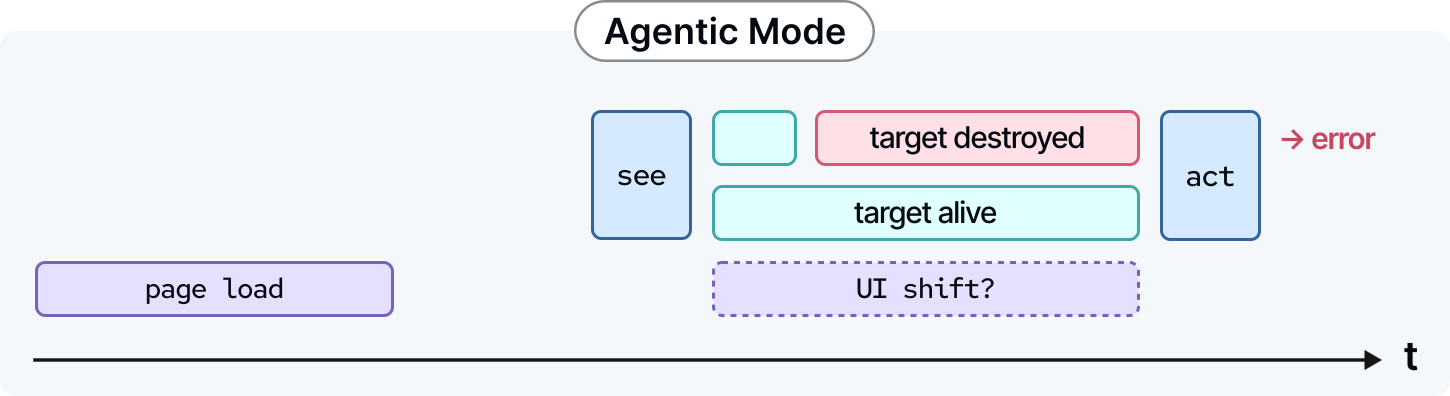
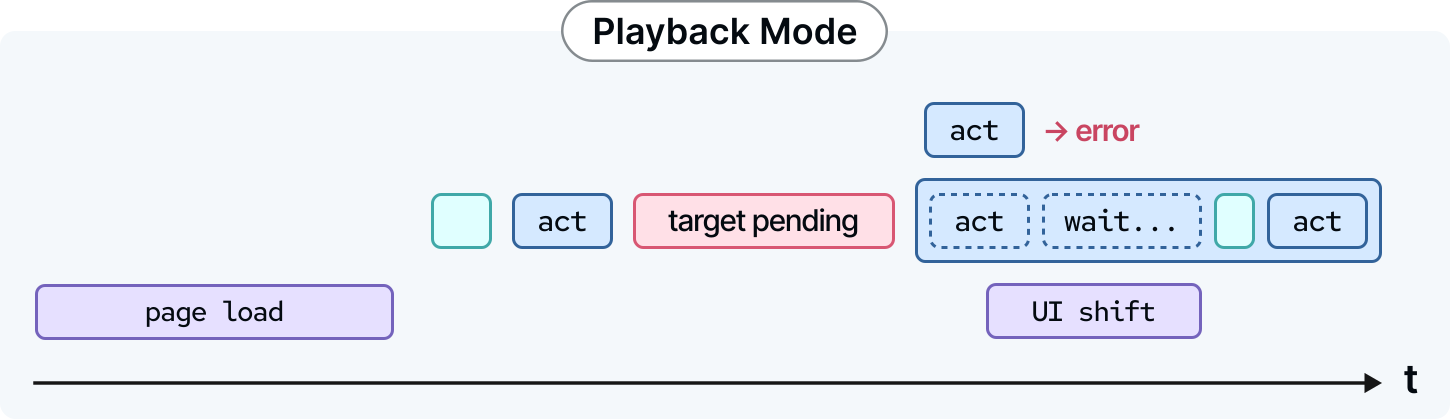
Webfuse provides a common actuation option, waitForTargetMs (0 by default), to toggle between an agent and playback mode. Unless waitForTargetMs is set to 0, the actuation call keeps trying to resolve the target until it exists or until the timeout is reached to throw a resolution error.
.act Actuation Scope
Section titled “.act Actuation Scope”Actuation refers to the process of interacting with a web page to change its state. For human users, this typically involves a few common actions, such as clicking, typing, or scrolling.
In the browser, an action is actually a sequence of multiple events fired on a specific target element. For example, a single “click” triggers a chain of events including:
- mousedown
- click
- mouseup
Webfuse emulates human actuation as closely as possible. When an action is performed via Webfuse, all corresponding events are dispatched not only on the target element but also along the trajectory of the mouse pointer movement, ensuring the web application reacts exactly as it would for a real user.
act.mouseMove()
Section titled “act.mouseMove()”Move the virtual mouse pointer.
browser.webfuseSession.automation.act.mouseMove( target: Target, options?: { persistent?: boolean; waitForTargetMs?: number; }): Promise<void>Parameters
Section titled “Parameters”target
- Mouse pointer target.
[options]
- Options:
[persistent]Whether to keep the pointer on screen after it was moved. By default, the pointer fades out after some time.[waitForTargetMs]Amount of milliseconds to wait for the target if it does not (yet) exist in the document (0by default).
Returns
Section titled “Returns”A promise that resolves once the mouse was moved.
Example
Section titled “Example”// Move the virtual mouse pointer to pixel position x=100 and y=400:await browser.webfuseSession .automation .act .mouseMove([100, 400]);act.scroll()
Section titled “act.scroll()”Scrolls the deepest scrollable element under the target by the given amount in the given direction.
browser.webfuseSession.automation.act.scroll( target: Target, amount: number, options?: { direction?: 'vertical' | 'horizontal', waitForTargetMs?: number; }): Promise<void>Parameters
Section titled “Parameters”target
- Scroll(able) target.
amount
- The amount of pixels to scroll.
[options]
- Options:
[direction]The direction to scroll.[waitForTargetMs]Amount of milliseconds to wait for the target if it does not (yet) exist in the document (0by default).
Returns
Section titled “Returns”A promise that resolves once scroll ended.
Example
Section titled “Example”// Scroll up the body element by 100 pixels:await browser.webfuseSession .automation .act .scroll('body', -100);act.click()
Section titled “act.click()”Perform a left (primary) mouse button click.
browser.webfuseSession.automation.act.click( target: Target, options?: { button?: 'left' | 'middle' | 'right'; moveMouse?: boolean; waitForTargetMs?: number; }): Promise<void>Parameters
Section titled “Parameters”target
- Click target.
[options]
- Options:
[button]Mouse button to click (leftby default).[moveMouse]Whether to move the virtual mouse pointer to the target center before performing the action (falseby default).[waitForTargetMs]Amount of milliseconds to wait for the target if it does not (yet) exist in the document (0by default).
Returns
Section titled “Returns”A promise that resolves once click was performed.
Example
Section titled “Example”// Click the fourth element in the second frame.// Move the virtual mouse pointer to the center of the target element beforehand:await browser.webfuseSession .automation .act .click('2-4', { moveMouse: true, });act.type()
Section titled “act.type()”browser.webfuseSession.automation.act.type( target: Target, text: string, options?: { followFocus?: boolean; overwrite?: boolean; timePerChar?: number; moveMouse?: boolean; waitForTargetMs?: number; }): Promise<void>Type text to an element. Typing is natural, i.e. as if a human presses a sequence of keys.
Parameters
Section titled “Parameters”target
- Typing target.
text
- Text to type.
[options]
- Options:
[followFocus]Whether to type to the element that has focus even if it changed to a different target (trueby default).[overwrite]Whether to overwrite the current contents of the target input (trueby default).[timePerChar]Expected mean time to press each character in ms (75by default).[moveMouse]Whether to move the virtual mouse pointer to the target center before performing the action (falseby default).[waitForTargetMs]Amount of milliseconds to wait for the target if it does not (yet) exist in the document (0by default).
Returns
Section titled “Returns”A promise that resolves once text was typed.
Example
Section titled “Example”// Type 'Jane Doe' to the currently focused element (suppose it is an input field):await browser.webfuseSession .automation .act .type(browser.webfuseSession.automation.Target.FOCUS, 'Jane Doe');act.select()
Section titled “act.select()”browser.webfuseSession.automation.act.select( target: Target, value: string, options?: { moveMouse?: boolean; waitForTargetMs?: number; }): Promise<void>Select an option of a dropdown element by value.
Parameters
Section titled “Parameters”target
- Select target.
value
- Value to select (according to
valueattribute).
[options]
- Options:
[moveMouse]Whether to move the virtual mouse pointer to the target center before performing the action (falseby default).[waitForTargetMs]Amount of milliseconds to wait for the target if it does not (yet) exist in the document (0by default).
Returns
Section titled “Returns”A promise that resolves once value was selected.
Example
Section titled “Example”// Select 'Netherlands' from a country dropdown list:await browser.webfuseSession .automation .act .select('select#country', 'netherlands');act.uploadFile()
Section titled “act.uploadFile()”browser.webfuseSession.automation.act.uploadFile( target: Target, files: { name: string; mimeType?: string; data: string; }[], options?: { moveMouse?: boolean; waitForTargetMs?: number; }): Promise<string>Attach files to an <input type="file"> element, as if they were chosen in the file picker, and fire its input and change events. Any files already attached are replaced.
Parameters
Section titled “Parameters”target
- File input target. The input may be hidden, e.g. behind a styled upload button or drop zone.
files
- Files to attach:
nameFile name, e.g.report.pdf.[mimeType]MIME type, e.g.application/pdf(empty by default).dataFile contents, base64-encoded.
[options]
- Options:
[moveMouse]Whether to move the virtual mouse pointer to the target center before performing the action (trueby default).[waitForTargetMs]Amount of milliseconds to wait for the target if it does not (yet) exist in the document (0by default).
Returns
Section titled “Returns”A promise that resolves with a summary of the attached files, e.g. Attached 1 file(s): hello.txt (13 bytes).
Example
Section titled “Example”// Attach a text file to a file input:await browser.webfuseSession .automation .act .uploadFile('input[type=file]', [ { name: 'hello.txt', mimeType: 'text/plain', data: btoa('Hello, world!') }, ]);act.keyPress()
Section titled “act.keyPress()”browser.webfuseSession.automation.act.keyPress( target: Target, key: 'a' | 'b' | ... | 'Z' | '.' | '!' | ... | 'Enter' | 'ArrowUp' | ..., options?: { altKey?: boolean; ctrlKey?: boolean; metaKey?: boolean; shiftKey?: boolean; moveMouse?: boolean; waitForTargetMs?: number; }): Promise<void>Press a key on an element. The key argument must be equivalent to a supported KeyboardEvent.key property, which is either:
- a control key, e.g.,
Enterto submit forms, orArrowUpto scroll up a page, or - a printable key, i.e., a typeable symbol that could be typed to an input field, e.g.,
a,B,!, or>.
TabEnterBackspaceDeleteInsertArrowUpArrowDownArrowLeftArrowRightHomeEndPageUpPageDownEscapeCapsLockShiftControlAltMetaF1F2F3F4F5F6F7F8F9F10F11F12Numpad0Numpad1Numpad2Numpad3Numpad4Numpad5Numpad6Numpad7Numpad8Numpad9NumpadAddNumpadSubtractNumpadMultiplyNumpadDivideNumpadDecimalNumpadEnterabcdefghijklmnopqrstuvwxyzABCDEFGHIJKLMNOPQRSTUVWXYZ0123456789,<.>/?;:!@#$%^&*~-_=+()[]{}\|`’”␠\t\n\rParameters
Section titled “Parameters”target
- Key press target.
key
- Key to press.
[options]
- Options:
- Booleans to hold down a secondary key during the press:
altKey,ctrlKey,metaKey, orshiftKey. [moveMouse]Whether to move the virtual mouse pointer to the target center before performing the action (falseby default).[waitForTargetMs]Amount of milliseconds to wait for the target if it does not (yet) exist in the document (0by default).
- Booleans to hold down a secondary key during the press:
Returns
Section titled “Returns”A promise that resolves once key was pressed.
Example
Section titled “Example”// Hit 'Enter' key on an identifiable submit button:await browser.webfuseSession .automation .act .keyPress('#submit', 'Enter');act.textSelect()
Section titled “act.textSelect()”browser.webfuseSession.automation.act.textSelect( target: Target, text: string, options?: { occurrence?: number; moveMouse?: boolean; waitForTargetMs?: number; }): Promise<void>Select continuous text in the page.
Parameters
Section titled “Parameters”target
- Text content selection target.
text
- Text to select (empty text also removes any existing selection).
[options]
- Options:
[occurrence]Occurrence of text to select if it is redundant (0, i.e., first by default).[moveMouse]Whether to move the virtual mouse pointer to the target center before performing the action (falseby default).[waitForTargetMs]Amount of milliseconds to wait for the target if it does not (yet) exist in the document (0by default).
Returns
Section titled “Returns”A promise that resolves once the selection was applied.
Example
Section titled “Example”// Select the third occurrence of the text 'ipsum' in the main element:await browser.webfuseSession .automation .act .textSelect('main', 'ipsum', { occurrence: 2 });act.highlight()
Section titled “act.highlight()”browser.webfuseSession.automation.act.highlight( target: string | HTMLElement | [number, number], durationMs: number = 5000): Promise<void>Draw a frame around an element in the page for a while. The frame is drawn by the Session UI on top of the page, so the page’s DOM is not altered. The frame follows the element while it is shown, when the element moves or resizes, for example on scroll. Parts of the element that are scrolled or clipped out of view are not framed. A target inside an iframe frames that element, not the whole iframe. A new highlight replaces the current one.
Parameters
Section titled “Parameters”target
- The element to highlight: an element, a CSS selector, a wf-id string from a snapshot, or coordinates as
[x, y], as for the otheractmethods.
durationMs
- How long the frame stays visible, in milliseconds. Defaults to
5000.
Returns
Section titled “Returns”A promise that resolves once the highlight is shown.
Example
Section titled “Example”// Frame the element for two seconds:await browser.webfuseSession .automation .act .highlight('#checkout', 2000);act.eval()
Section titled “act.eval()”browser.webfuseSession.automation.act.eval( code: string): Promise<string | undefined>Run JavaScript in the page’s main document and return the result. The code runs as a global script in the page’s context, the same way as the page’s own scripts. The value of the last expression is JSON-serialized, including strings. If JSON serialization throws, string conversion is used instead. Promises are awaited.
Parameters
Section titled “Parameters”code
- JavaScript source to evaluate.
Returns
Section titled “Returns”A promise that resolves with the result serialized as JSON (undefined if the code evaluates to undefined). It rejects with the error thrown by the code.
Example
Section titled “Example”// Read a value from the page:const title = await browser.webfuseSession .automation .act .eval('document.title');.see Perception Scope
Section titled “.see Perception Scope”Perception is the process of interpreting the current state of a web page. In the case of web automation, the state of web applications. While human users primarily see websites via graphical user interfaces (GUIs), computer agents can easily understand web application state by more than visual means. A prominent technical representation of non-visual state is the document object model (DOM)—a web browser’s runtime model of a web application.
By analyzing the DOM, agents can programmatically understand:
- Structural hierarchy (how elements are nested).
- Element attributes (IDs, classes, and accessibility labels).
- Metadata not immediately visible to the naked eye.
see.textSelection()
Section titled “see.textSelection()”browser.webfuseSession.automation.see.textSelection(): Promise<string>Get the currently selected text in the page.
Returns
Section titled “Returns”A promise that resolves with the currently selected text (or empty string if nothing is selected).
see.domSnapshot()
Section titled “see.domSnapshot()”browser.webfuseSession.automation.see.domSnapshot(options?: { crossFrame?: boolean; crossShadow?: boolean; interactiveOnly?: boolean; maxTokens?: number; quality?: number; revealMaskedElements?: boolean; root?: Target; webfuseIDs?: boolean;}): Promise<DOMSnapshotResult>Take a DOM snapshot, which is a time-sensitive serialization of the current web page’s state in HTML.
Parameters
Section titled “Parameters”[options]
- Options:
[crossFrame]Webfuse Exclusive Whether to include iframe subtrees (falseby default).[crossShadow]Webfuse Exclusive Whether to include shadow DOM subtrees (trueby default).[interactiveOnly]Only include interactive DOM subtrees in the snapshot, which can be interpreted as a noise filter.[maxTokens]Limit snapshot size by LLM input tokens (1 token = 4 bytes), by adaptively adjusting quality (in addition to the specified quality) (infinite by default).[quality]Adjust snapshot quality (between0(lowest) and1(highest)) (1.0, i.e., perfect quality by default).[revealMaskedElements]Whether to include masked elements (falseby default).[root]Target a snapshot root element to scope the DOM snapshot to a specific subtree (integrates with targeting,HTMLby default).[webfuseIDs]Whether to assign each element the Webfuse ID (Webfuse ID) via the HTML pseudo attributewf-id(falseby default).
Returns
Section titled “Returns”A promise that resolves with the DOM snapshot result, i.e., DOM state serialized as HTML, and parsed as a detached DOM tree.
interface DOMSnapshotResult { dom: Element; // Snapshot root element (detached) outerHTML: string; // Snapshot HTML, including the root element innerHTML: string; // Snapshot HTML, excluding the root element html: string; // Alias for innerHTML}Example
Section titled “Example”// Take a DOM snapshot, i.e., serialize the current state of the DOM as HTML, descending only from the main element.// To each element, assign its unique Webfuse ID via `wf-id` pseudo attribute.// Do not include shadow DOMs in snapshot:const snapshot = await browser.webfuseSession .automation .see .domSnapshot({ root: 'main', crossShadow: false, webfuseIDs: true, });
snapshot.outerHTML; // '<main>...</main>'Cross-Frame Snapshots
Section titled “Cross-Frame Snapshots”Cross-frame snapshots (crossFrame = true) will have all iframe contents inlined, e.g.:
<html> <head></head> <body> <h1>Parent</h1> <iframe src="/child"> <body> <h1>Child</h1> </body> </iframe> </body></html>Cross-Shadow Snapshots
Section titled “Cross-Shadow Snapshots”Cross-shadow snapshots (crossShadow = true) will have all shadow root contents inlined, e.g.:
<div> <custom-element> <shadow-root> <strong>Shadow</strong> <p> <slot></slot> </p> </shadow-root> <b>Slotted</b> </custom-element></div>Snapshots and Agentic AI
Section titled “Snapshots and Agentic AI”The web AI agent lifecycle models a constant loop of perceiving the current state of a website, prompting the model for actuation suggestions, and acting out these suggestions. Snapshots paired with Webfuse IDs represent a robust means of targeting, even after destructive snapshot processing.
PROMPT
Book a flight to Amsterdam.SNAPSHOT
<body WF-ID="1"> <h1 WF-ID="2">Book Flight</h1> <p>Please confirm your booking information.</p> <checkout-form WF-ID="3"> <shadow-root> <button type="button" WF-ID="4">Confirm</button> </shadow-root> </checkout-form></body>Based on the AI model’s suggestions, actuation can target elements via Webfuse ID:
browser.webfuseSession .automation .act .click('4')see.guiSnapshot()
Section titled “see.guiSnapshot()”browser.webfuseSession.automation.see.guiSnapshot(options?: { maxTokens?: number; quality?: number;}): Promise<string>Serialize the GUI for various processing purposes, such as for LLM input.
Serialized GUI corresponds to a screenshot in Base64 representation.
[options]
- Options:
[maxTokens]Limit snapshot size by LLM input tokens (1 token = 4 bytes), by adaptively adjusting quality (in addition to the specified quality).[quality]Adjust snapshot quality (between0(lowest) and1(highest)) (0.6by default).
Returns
Section titled “Returns”A promise that resolves with the GUI snapshot in Base64 string representation.
Example
Section titled “Example”const guiSnapshot = await browser.webfuseSession .automation .see .guiSnapshot({ quality: 0.5 });UklGRngAAABXRUJQVlA4IGwAAADwAQCdASoEAAQAAgA0JbACdC0Kwa/0+wAA/cfu7X4p/5VIbL2pNX/05//HOp/v/3r/4dCHdtZGuf/8OyzY4WR//HP/5lB/4mP9Cf/5G/2Xf/rqzK//bCH9ZizBe1f+L/5s2v9TeRgGeTOgAAA=see.accessibilityTree()
Section titled “see.accessibilityTree()”browser.webfuseSession.automation.see.accessibilityTree(options?: { root?: Target; quality?: number; webfuseIDs?: boolean;}): Promise<string>Take an accessibility tree snapshot.
[options]
- Options:
[root]Target a snapshot root element to scope the DOM snapshot to a specific subtree (integrates with targeting,bodyby default).[quality]Snapshot quality (between0(lowest) and1(highest)) (1.0, i.e., perfect quality by default).[webfuseIDs]Whether to associate every element in the tree with its Webfuse ID (viasourceproperty) (trueby default).
Returns
Section titled “Returns”A promise that resolves with the accessibility tree snapshot in YAML representation.
see.webfuseLocator()
Section titled “see.webfuseLocator()”browser.webfuseSession.automation.see.webfuseLocator( element: HTMLElement): Promise<string>Compute the Webfuse Locator of an element.
Parameters
Section titled “Parameters”element
- Element to compute the Webfuse Locator for.
Returns
Section titled “Returns”A promise that resolves with the Webfuse Locator of the element.
Example
Section titled “Example”const webfuseLocator = await browser.webfuseSession .automation .see .webfuseLocator(document.querySelector('#checkout'));CS77501G000001ASXXGP8G65ZKBP4Q00000DBNKG0004see.webfuseLocatorTarget()
Section titled “see.webfuseLocatorTarget()”browser.webfuseSession.automation.see.webfuseLocatorTarget( webfuseLocator: string, confidenceThreshold?: number, k?: number): Promise<{ element: Element; confidenceScore: number }[]>Resolve a Webfuse Locator to the best-matching elements in the page, best first. The confidence threshold can be adjusted to control how much an element may have changed, which is a valid phenomenon across page version deployments.
Parameters
Section titled “Parameters”webfuseLocator
- Webfuse Locator to resolve.
[confidenceThreshold]
- Minimum match confidence (between
0(lowest) and1(highest)) (0.9by default). Lower the threshold to tolerate more UI drift, at the risk of resolving a wrong element.
[k]
- Maximum number of matches to return (
1by default). Must be a positive integer.
Returns
Section titled “Returns”A promise that resolves with a list of up to k matches, each with the matched element and its confidenceScore, ordered by descending confidence. For an element in a same-origin frame, the match is the element inside the frame, not the frame element.
The list is empty if no element matches with sufficient confidence.
The promise rejects with a ReferenceError if the Webfuse Locator is malformed, with a RangeError if k or confidenceThreshold is out of range, and with a SyntaxError if an argument has the wrong type.
Example
Section titled “Example”const [{ element, confidenceScore }] = await browser.webfuseSession .automation .see .webfuseLocatorTarget('CS77501G000001ASXXGP8G65ZKBP4Q00000DBNKG0004', 0.8);.tool Tool Scope Expert
Section titled “.tool Tool Scope ”tool.computeAccessibilityTree()
Section titled “tool.computeAccessibilityTree()”browser.webfuseSession.automation.tool.computeAccessibilityTree( domSnapshot: string | DOMSnapshotResult, representation?: 'yaml' | 'json'): Promise<string | object>Translate a DOM snapshot to its accessibility tree object representation.
Tools provide a way to chain several DOM snapshot mutations.
For instance, a pure DOM snapshot (see.domSnapshot()) could first be downsampled (‘compressed’, e.g., via tool.applyD2Snap()),
and subsequently translated to its accessibility tree representation (tool.computeAccessibilityTree()).
Parameters
Section titled “Parameters”domSnapshot
- DOM snapshot (or DOM snapshot result) to compute an accessibility tree representation from.
representation
- Accessibility tree representation (
'yaml'by default).
Returns
Section titled “Returns”A promise that resolves with the accessibility tree object.
Example
Section titled “Example”<form role="form" aria-describedby="recipe-hint" aria-labelledby="recipe-form-title"> <div role="group" aria-labelledby="checkbox-group"> <h3 id="checkbox-group">Recipe Preferences</h3> <label for="notifications" aria-describedby="notifications-description"> <input type="checkbox" id="notifications" name="notifications" aria-label="Enable recipe update notifications"> Receive recipe updates </label> <p id="notifications-description">I would like to receive updates.</p> </div></form>const snapshot = await browser.webfuseSession .automation .see .domSnapshot({ root: 'form' });
await browser.webfuseSession .automation .tool .computeAccessibilityTree(snapshot, 'json');{ "role": "RootWebArea", "source": "html", "children": [ { "name": "Recipe Preferences", "properties": { "level": 3 }, "role": "heading", "source": "#checkbox-group" }, { "children": [ { "name": "Enable recipe update notifications", "properties": { "aria-label": "Enable recipe update notifications" }, "role": "checkbox", "source": "#notifications", "states": { "checked": false } } ], "properties": { "aria-describedby": "notifications-description" }, "role": "generic", "source": "html > body > section > form > div > label", "description": "I would like to receive updates." } ]}tool.applyD2Snap()
Section titled “tool.applyD2Snap()”Apply the D2Snap DOM downsampling algorithm to a DOM snapshot. This will reduce its size, while retaining its overall structural features, and also a majority of inherent UI features. The D2Snap algorithm was developed in order to mitigate the prevalent DOM token size disadvantage.
browser.webfuseSession.automation.tool.applyD2Snap( domSnapshot: string | DOMSnapshotResult, hierarchyRatio: number, textRatio: number, attributeRatio: number, options?: D2SnapOptions,): Promise<DOMSnapshotResult>Parameters
Section titled “Parameters”domSnapshot
- DOM snapshot (or DOM snapshot result) to downsample.
[hierarchyRatio]
- Hierarchy (nesting) compression ratio of the result (also referred to as
rE).
[textRatio]
- Text (length) compression ratio of the result (also referred to as
rT).
[attributeRatio]
- Attribute (count) compression ratio of the result (also referred to as
rA).
[options]
D2SnapOptionsoptions object.
Returns
Section titled “Returns”A promise that resolves with the downsampled DOM snapshot result.
Example
Section titled “Example”Raw
<section class="container" tabindex="3" required="true" type="example"> <div class="mx-auto" data-topic="products" required="false"> <h1>Our Pizza</h1> <div> <div class="shadow-lg"> <h2>Margherita</h2> <p> A simple classic: mozzarela, tomatoes and basil. An everyday choice! </p> <button type="button">Add</button> </div> <div class="shadow-lg"> <h2>Capricciosa</h2> <p> A rich taste: mozzarella, ham, mushrooms, artichokes, and olives. A true favourite! </p> <button type="button">Add</button> </div> </div> </div></section>const snapshot = await browser.webfuseSession .automation .see .domSnapshot({ root: 'section.container:first-of-type', });
// Downsample ('compress') the raw DOM snapshot.// Compress hierarchy, i.e., element nesting depth by about 50%.// Compress text, i.e., paragraph sentence length by about 30%.// Compress attributes, i.e., attribute amount by about 80%:await browser.webfuseSession .automation .tool .applyD2Snap(snapshot, 0.5, 0.3, 0.8);Downsampled
<!-- hierarchyRatio = .4, textRatio = .6, attributeRatio = .8 --><section> # Our Pizza <div> ## Margherita A simple classic: <button>Add</button> ## Capricciosa A rich taste: <button>Add</button> </div></section>tool.applyAdaptiveD2Snap()
Section titled “tool.applyAdaptiveD2Snap()”Alias: tool.downsample()
Apply the AdaptiveD2Snap DOM downsampling algorithm to a DOM snapshot. This is an adaptive version of the D2Snap algorithm that does not require explicit parameters.
browser.webfuseSession.automation.tool.applyAdaptiveD2Snap( domSnapshot: string | DOMSnapshotResult, maxTokens: number = 2**15, // ≈ 32K maxIterations: number = 3, options?: D2SnapOptions,): Promise<DOMSnapshotResult>Parameters
Section titled “Parameters”domSnapshot
- DOM snapshot (or DOM snapshot result) to downsample.
[maxTokens]
- Maximum expected snapshot size in estimated LLM input tokens (1 token ≈ 4 bytes/symbols) (infinite by default).
[maxIterations]
- Maximum tries to downsample with increasing compression ratio parameters to obtain a snapshot below the given token limit (throws error otherwise).
[options]
D2SnapOptionsoptions object.
Returns
Section titled “Returns”A promise that resolves with the downsampled DOM snapshot result.
Example
Section titled “Example”The recommended way to get started with downsampled DOM snapshots is by simply calling the adaptive D2Snap tool alias with the default arguments:
const snapshot = await browser.webfuseSession  .automation  .see  .domSnapshot();
await browser.webfuseSession .automation .tool .downsample(snapshot); // .applyAdaptiveD2Snap(snapshot)navigate()
Section titled “navigate()”browser.webfuseSession.automation.navigate(url: string): voidNavigate the current page to a given URL.
Parameters
Section titled “Parameters”url
- URL to navigate to. Supports absolute URLs (e.g.
https://example.com/page) and relative URLs (e.g./page,./page,page.html), which are resolved against the current tab’s URL.
wait()
Section titled “wait()”browser.webfuseSession.automation.wait(ms: number): Promise<void>Wait a given amount of milliseconds.
Parameters
Section titled “Parameters”ms
- The amount of milliseconds to wait.
Returns
Section titled “Returns”A promise that resolves once the given wait time has passed.
Example
Section titled “Example”await browser.webfuseSession .automation .act .mouseMove([230, 1215]);
// Wait for 500ms:await browser.webfuseSession .automation .wait(500);
await browser.webfuseSession .automation .act .type(browser.webfuseSession.automation.Target.POINTER, 'Amsterdam');Event Emitter
Section titled “Event Emitter”The Automation API event emitter interface can be used to listen for certain automation-related events. Like the rest of the Automation API, it is available from every extension component (content script, popup, side panel, service worker, and new-tab page), so you can observe automation events wherever your agent logic lives, not just in the content script.
Event | Description |
|---|---|
page:stable | Fires when the web page settled in a stable state. That means there are no structurally significant changes happening that can be considered a meaningful page-level UI shift. |
page:transition | Fires when the web page left a stable state, as it is undergoing a meaningful page-level UI transition. |
act:mouseMove | Fires when act.mouseMove() is called. |
act:... | … |
see:textSelection | Fires when see.textSelection() is called. |
see:... | … |
tool:computeAccessibilityTree | Fires when tool.computeAccessibilityTree() is called. |
tool:... | … |
navigate | Fires when navigate() is called. |
wait | Fires when wait() is called. |
browser.webfuseSession.automation.on( event: Event, listener: (detail: unknown) => void): thisListen for an event; invoke a given callback every time the event is dispatched.
Parameters
Section titled “Parameters”event
- The event to listen for (e.g.,
page:stable).
Returns
Section titled “Returns”A reference to the Automation API that allows chaining multiple event listeners.
Example
Section titled “Example”browser.webfuseSession .automation .on("page:stable", () => { agentUI.update("active"); }) .on("page:transition", () => { agentUI.update("passive"); });once()
Section titled “once()”browser.webfuseSession.automation.once( event: Event, listener: (detail: unknown) => void): thisListen for an event; invoke a given callback only once, the next time the event is dispatched.
Parameters
Section titled “Parameters”event
- The event to listen for.
Returns
Section titled “Returns”A reference to the Automation API that allows chaining multiple event listeners.
Example
Section titled “Example”browser.webfuseSession .automation .once("page:stable", () => { agentUI.classList.add("connected"); }) .on("act:click", () => { clearTimeout(uiTimeout); agentUI.classList.add("act-click"); uiTimeout = setTimeout(() => { agentUI.classList.remove("act-click"); }, 1000); });